How to Convert a Bank Statement PDF to Excel
25 Sep 2026
25 Sep 2026
min read
How to Convert a Bank Statement PDF to Excel?
Bank statements are among the most important financial documents today. We need them for expense and tax management. Many of the banks today provide statements in digital format, particularly PDF.
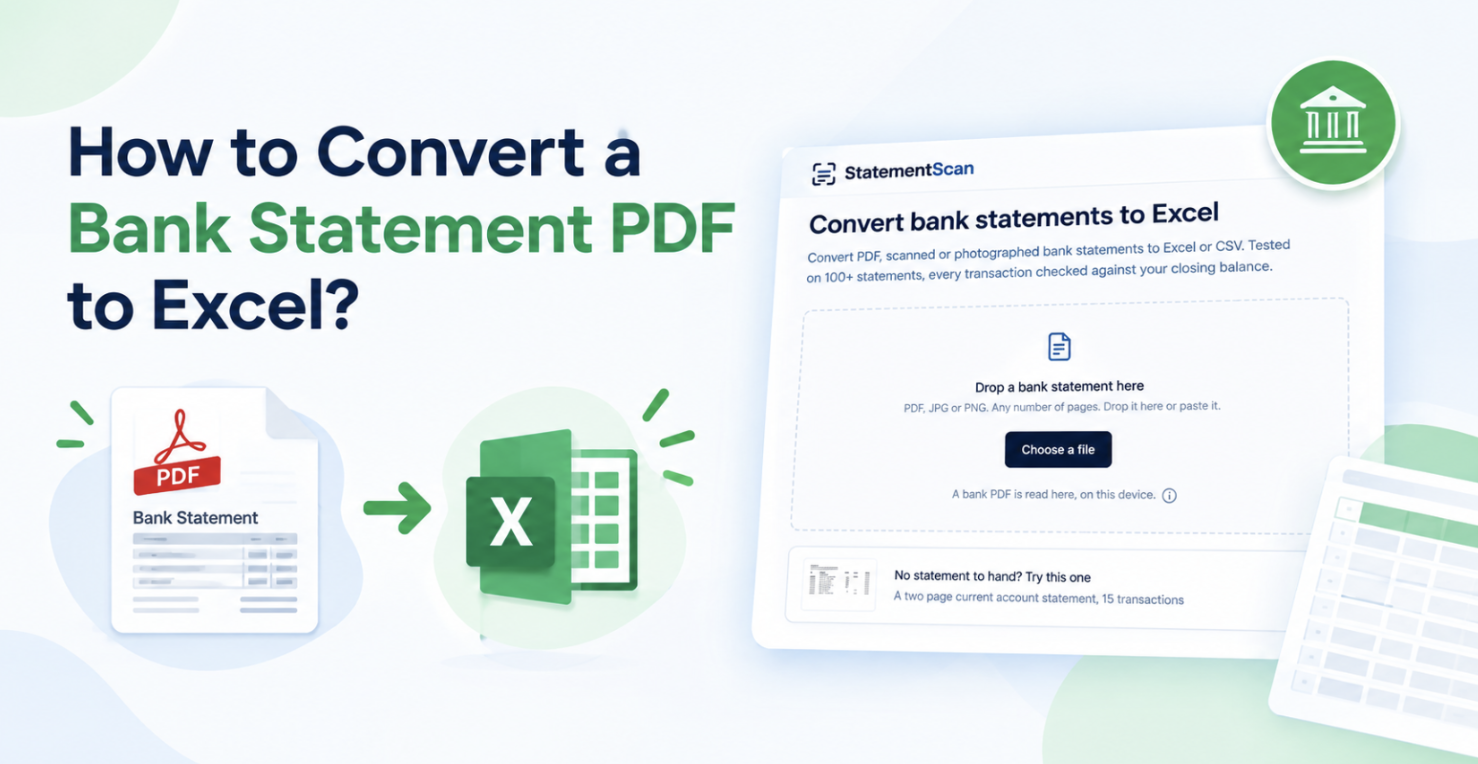
Yet, PDF is secure and can be opened on every digital device with an operating system, and it works well for viewing and sharing. But there is one problem with PDF: it makes data analysis harder. You cannot sort transactions, nor can you apply filters. That is where many people look for ways to convert a PDF bank statement into Excel.
In this blog post, we are going to walk you through one of the easiest ways to convert a bank statement into Excel with just one click.
Why Convert a Bank Statement PDF to Excel?
Excel gives you more control over your bank data. Once you convert the statement, you can:
- Sort transactions by date
- Filter payments and deposits
- Track your expenses
- Find large payments
- Calculate totals
- Prepare bookkeeping records
- Create financial reports
- Import data into accounting software
You can also edit the data when needed. This makes Excel more useful than a PDF for many financial tasks.
How to Convert a Bank Statement PDF to Excel Online?
You can use several methods to convert a bank statement into an Excel file. However, the most efficient, accurate, and instant method is using an online bank statement converter.
A bank statement converter is basically a utility that scans statements from PDFs, images, and scanned documents and turns them into editable sheets like Excel.
For example, StatementScan.io. It can extract transactions from PDFs, scanned PDFs, JPG, and PNG files. It places the data into a table with details such as date, description, money in, and money out.
Let us show you how you can convert a PDF bank statement into Excel using an online converter.
Step 1. Open a Bank Statement Converter
Open a bank statement conversion tool. Must choose one carefully. Because a bank statement is a sensitive document. Go for tools that are reliable, fully secure, and deliver good results.
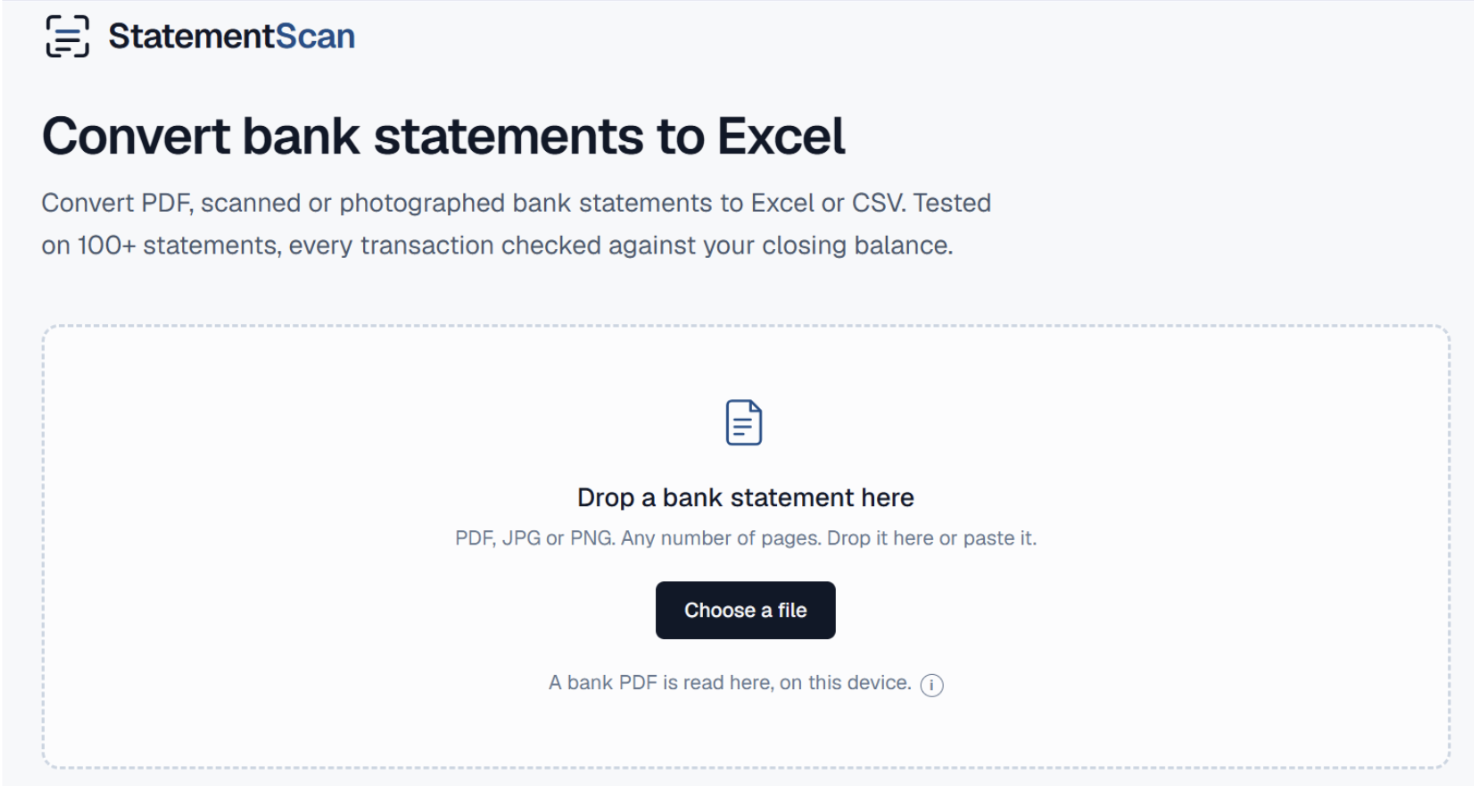
One example of such a tool is statementscan.io that we are using next for demonstration purposes.
Step 2. Upload Your Statement
Upload your bank statement. Depending on the tool, you may be able to upload a PDF, scanned PDF, JPG, or PNG. We uploaded a dummy statement to statementscan.io. As we did that, the tool automatically started the scan instantly.

Step 3. Let the Tool Extract the Data
The tool reads the statement and extracts the transactions. It places the information into separate columns for the date, description, money out, money in, and balance.

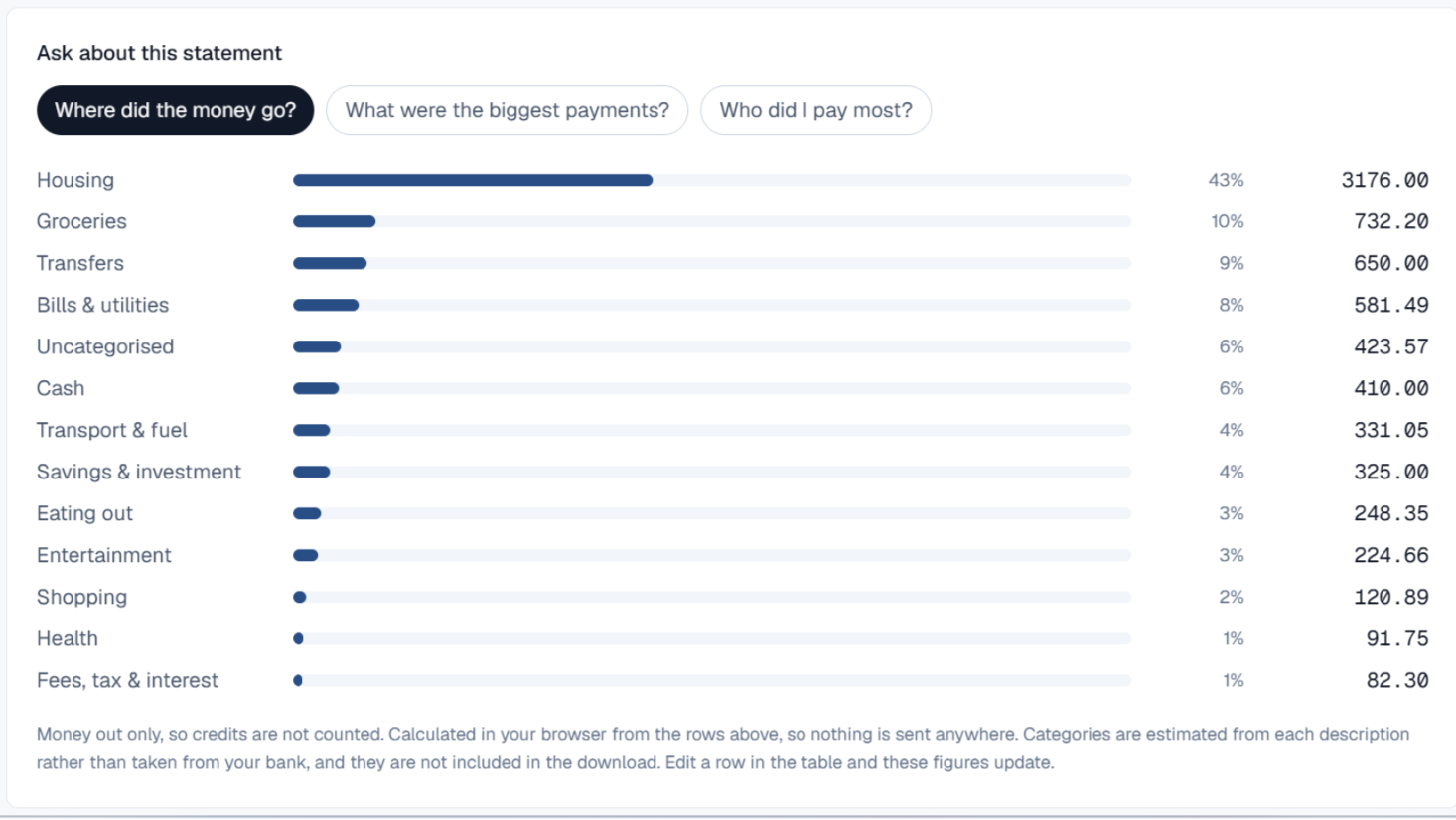
Besides the general information, the converter also filters out where the money is spent the most based on the numbers inside the provided statement.
Step 4. Review the Transactions
Check the extracted data before downloading it. Look for missing transactions, wrong amounts, incorrect dates, or other errors.
A good bank statement converter should help you verify the extracted data.
If the numbers do not match the closing balance on the original statement, check the transactions again.
Step 5. Download Excel File
Once everything looks correct, download the Excel file. You can then open it in Excel, Google Sheets, or another spreadsheet program.
How to Avoid Losing Data During Conversion?
A few simple checks can help you avoid problems:
- Use the original bank statement when possible.
- Check every page of the statement.
- Review the opening and closing balances.
- Check all transaction amounts.
- Look for missing transactions.
- Check dates and descriptions.
- Review OCR results carefully.
- Reconcile the final Excel file with the original statement.
These checks take only a few minutes but can help prevent bigger problems later.
Benefits of Conversion
Once your bank statement sits in Excel, you can use the data in many ways.
- Sort transactions by date or amount.
- Filter payments from a specific company.
- Calculate your total spending.
- Group expenses into categories.
- Extract data for bookkeeping and financial reports.
- Track spending and manage your budgets.
Bottom Line
Converting a bank statement PDF to Excel can save time and reduce manual work. You can use an online bank statement converter like statementscan.io for instant conversion. It gives you a simple way to turn bank statements into useful Excel data while checking the results before you download them.
Keywords:
Convert Bank Statement Pdf To Excel, Bank Statement To Excel, Pdf Bank Statement Converter, Online Bank Statement Converter, Extract Bank Transactions Excel, Statementscan.io, Bank Statement Excel Conversion
,


