Best Ways to Extract Information from Scanned Documents
10 Nov 2026
12 Oct 2026
min read
Best Ways to Extract Information from Scanned Documents
You have a scanned document (a contract, a textbook page, an old receipt) and you need the text that’s inside it. But when you try to copy it, you can’t.
That’s because a scan is not text that you can copy. It’s a picture with text in it. To extract that text and make it editable, you need OCR technology.
You probably already have OCR tools on your device that can extract information from scanned documents. And even if you don’t have them, many are available online for free.
In this guide, I’ll introduce three different ways to extract text from scans.
3 Methods to Extract Text from Scans
The best way for you depends on your workflow and the type of device you are working on. That’s why I’ve come up with three different methods, so you can pick one that best fits your requirements and needs.
Let’s explore them one by one.
1. Using Microsoft Photos’ Scan Text Feature
If you are a Windows 11 or Windows 10 user, there’s a tool built right into your PC/laptop. You don’t need to download anything, create an account, or buy software.
The Microsoft Photos app in Windows 10 & 11 includes a “Scan text” feature. It makes the text inside your scan/image editable in just one click.
Open your scanned image in the Photos app (which is usually the default app for opening a picture on Windows).
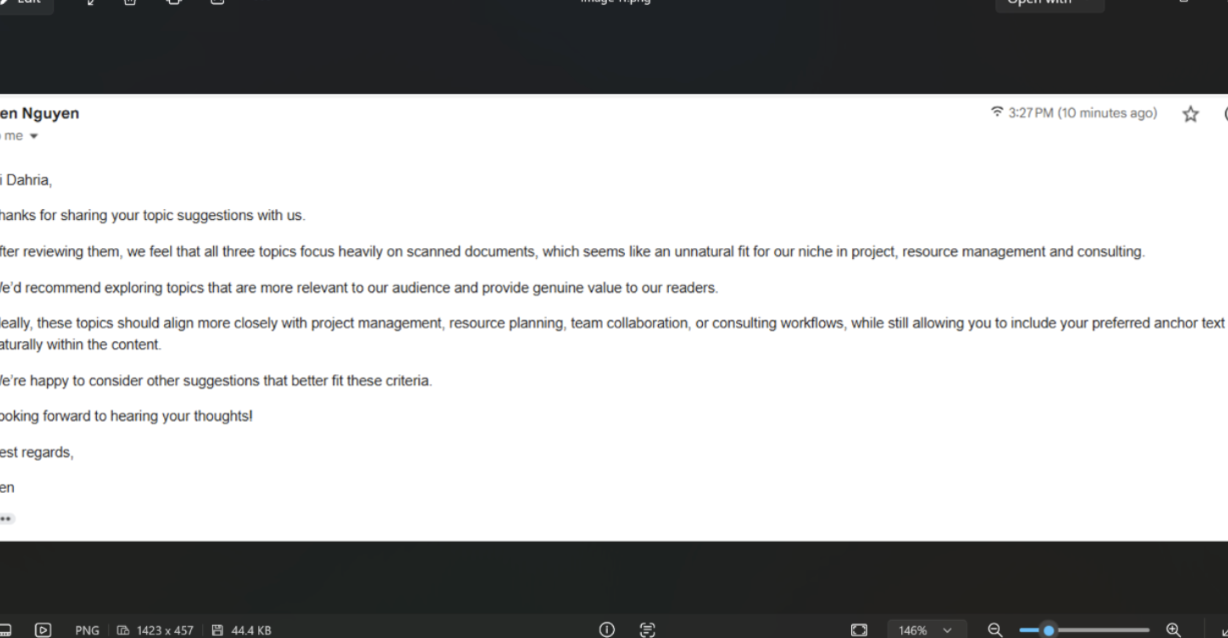
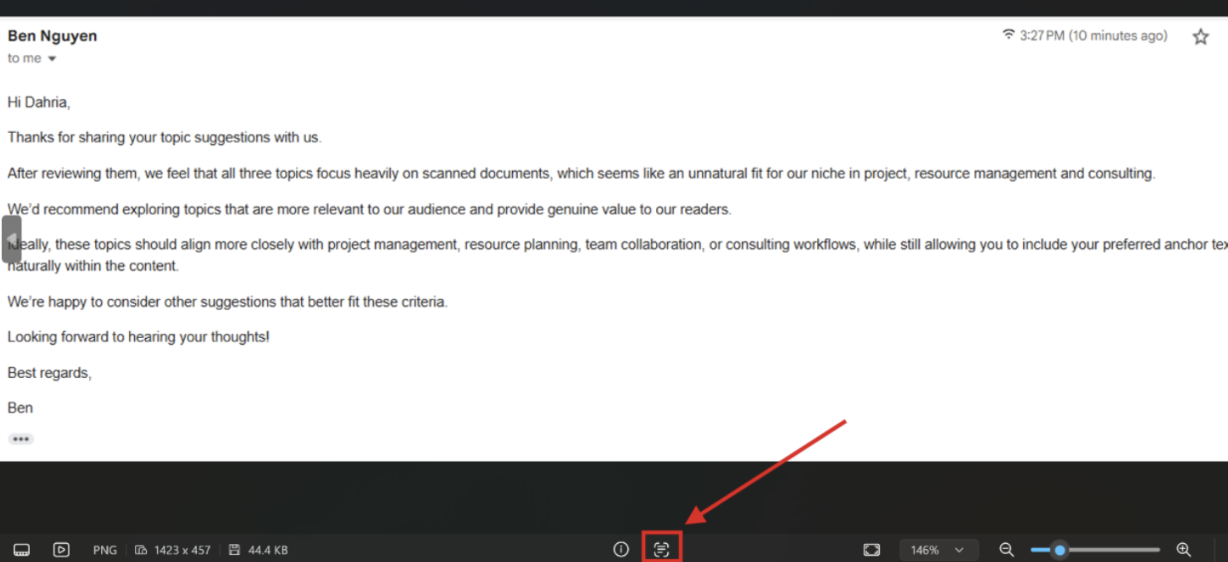
After opening the scanned image, click on the scan text icon at the bottom center of your screen.
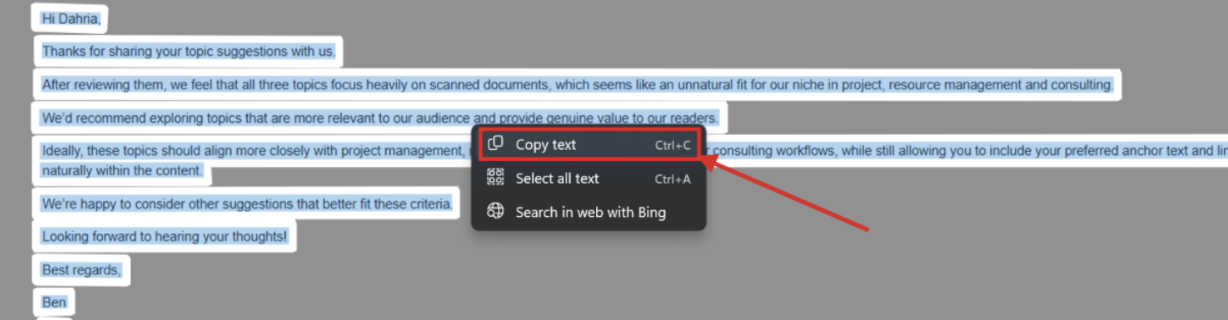
When you click the icon, it takes a few seconds before the readable text inside the image is highlighted by the app.
You can simply select the text you want to copy and right click on it. From the pop up menu that appears after clicking, select Copy text. Now you can paste/edit/use the text anywhere you want.
Pros
- Free and already installed
- Works offline (your scanned document/picture stays safe)
- Quick for a single image
Cons
- Works only in Windows 10 and 11 (doesn’t work on older versions)
- Handles only one image at a time
Best for
Windows users who need quick text extraction from one or two scanned documents on the spot.
2. Using Apple’s Live Text Feature
Just like Windows in PC or laptops, there’s a built in option for Mac users.
Apple’s Live Text feature lets you select and copy text directly from images on your Mac, iPhone, or iPad.
Live Text arrived in iOS 15, iPadOS 15, and macOS Monterey. It works in the Photos app and in Preview on Mac.
On iOS/iPadOS (with version 15 or above installed), simply open your scan.

Touch and hold any word/part of the text on the screen and click on “Copy” to use it.
You can also click on the Live Text (three line) icon at the bottom right of your screen and then select ‘Copy All’ to copy the full text at once.

For Mac, the process is simple too. Just open the scanned image in Preview or Photos. Click the Live Text icon or simply click and drag over the text directly. Then select the text, copy it, and use it anywhere you want.

Pros
- Fast and built in for the OS
- Works offline (so your file stays private)
- Copy text with just one click
Cons
- Apple devices only
- Can’t process multiple files in one go
Best for
Mac/iPhone/iPad users who want to extract readable text from quick captures and small scans in the fastest way offline
3. Using an Online OCR Converter
Sometimes the built-in tools may not be enough.
Maybe you’re on a computer with Windows 8 or 8.1, where you don’t have the scan text feature available, or you are using an Android phone. Maybe you have 20 scanned pages to extract text from, not one.
In these cases, you can use an online OCR converter. They work on every device, and you don’t have to install anything. All you need is an active internet connection and a browser.
Just make sure you use a tool that allows bulk processing and keeps your data private. We are also using the one (in our demonstration) that fits these requirements.
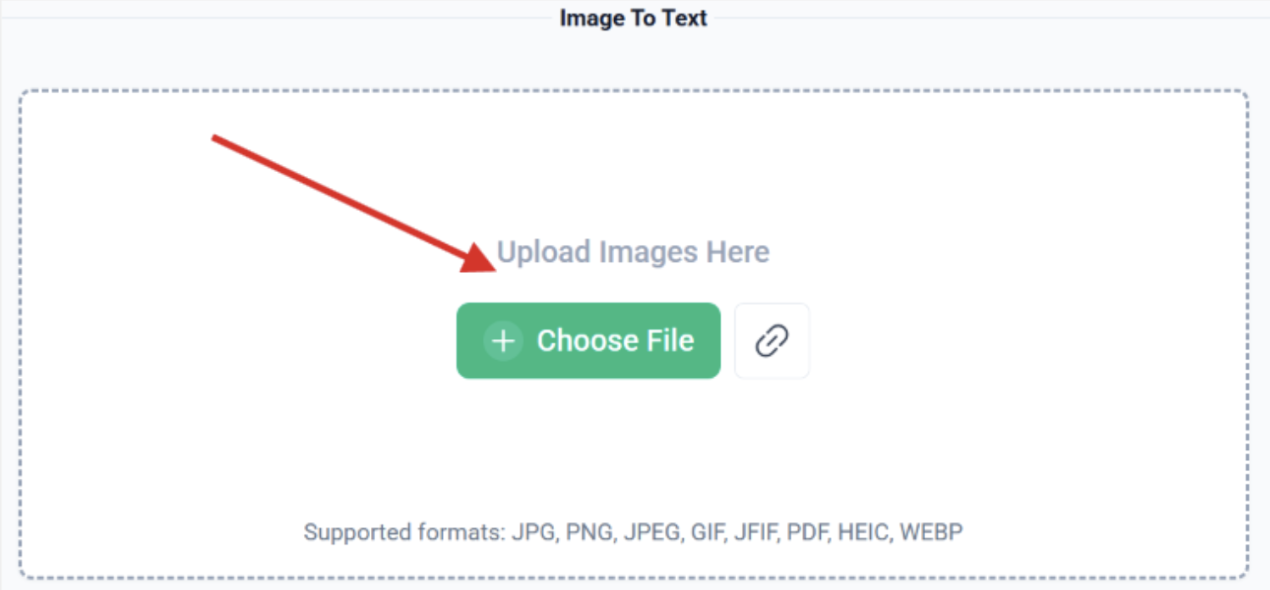
Open the OCR-powered Image to Text converter in your browser. Then, upload your scanned image/images (through drag and drop, copy & paste, or upload from storage).
Once uploaded, you can crop the images to remove unnecessary parts before clicking the “Extract Text” button.
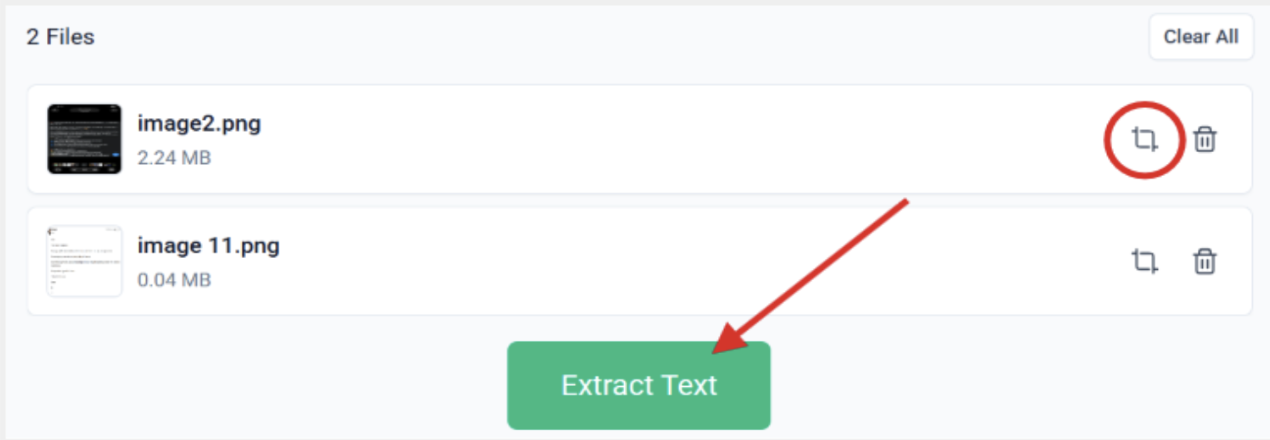
When you click that button, the tool takes a few seconds before providing you with the extracted text. You can copy the text or download it as a file.
Pros
- Works on any device
- Nothing to install
- Supports multiple image formats and languages
- Handles bulk processing
Cons
- Can’t work offline
- Quality varies between tools (you need to cross-check the output)
Best for
Users who need to process multiple scans online on different devices.
A Quick Comparison
There’s no one “best” way to extract information from scanned documents. It all depends on your situation and preferences.
Here is a quick comparison to help you choose the right method:
|
Method |
Platform |
Install needed |
Bulk support |
Works offline |
|
Photos’ Scan Text |
Windows 10, 11 |
No |
No |
Yes |
|
Apple’s Live Text |
macOS, iOS, iPadOS |
No |
No |
Yes |
|
Online OCR Converter |
Any (with a browser) |
No |
Often Yes |
No |
Conclusion
Text extraction from scans and images is easier than most people expect. The tool you need is usually on your device already.
For Windows (10,11), use Microsoft’s scan text feature. If you are working on an Apple device, then you can use the Live Text feature. And when you need to convert more than one picture into text, image to text converters are available on the internet.
Whatever method you choose, it’s wise to verify the OCR output before official use.
Keywords:
Extract Text From Scanned Documents, Ocr Scanned Documents, Scan Text Windows, Live Text Apple, Online Ocr Converter, Image To Text, Extract Text From Image
,


